
New Page Navigator: Build and Reorganize Pages From One Place
Last Updated: Jan 14, 2026 by Editorial Team | Reviewed by: Ian Bass
We're excited to share two new features that make building and launching with OptimizePress even faster and easier.
These updates are designed to remove friction and help you work more efficiently, whether you're editing complex pages or setting up a new site.
Table of contents
Introducing the Page Navigator
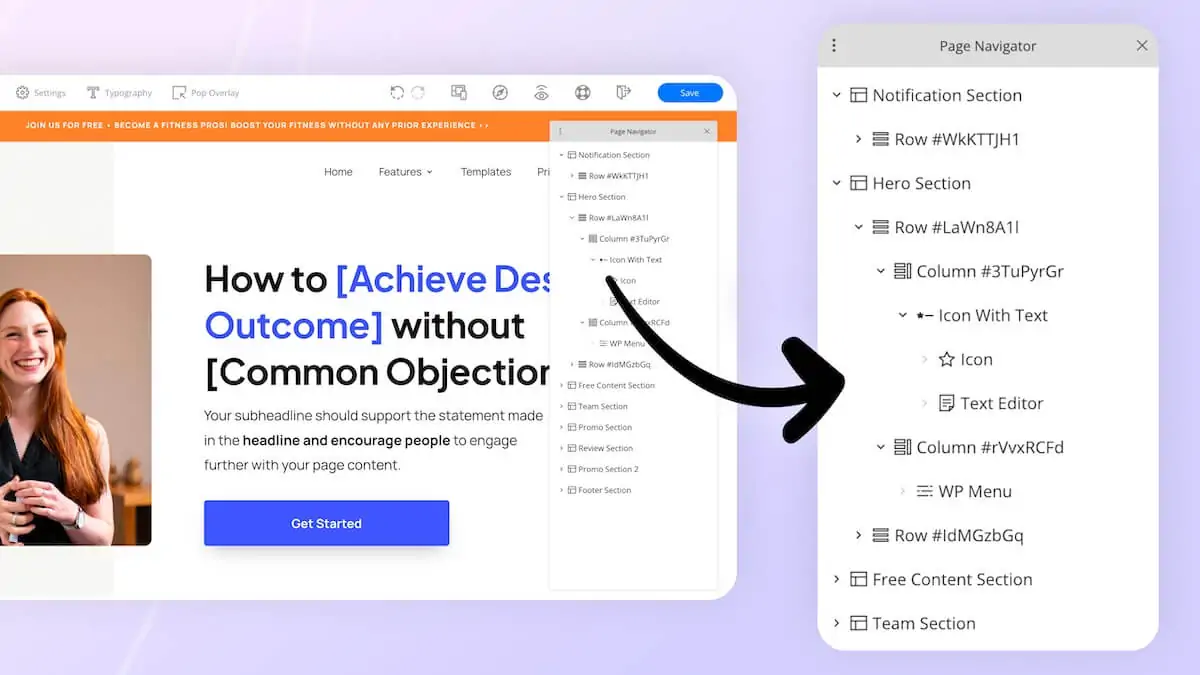
The Page Navigator gives you a bird's-eye view of your entire page structure from one convenient panel.
Benefits of the Page Navigator
With a single click, open the Navigator to see every section, row, and element on your page laid out in a clear hierarchy.
This is especially useful when you're working with longer pages or complex funnel layouts where scrolling through the editor can slow you down.
From the Navigator, you can instantly jump to any part of your page, rearrange sections by dragging and dropping, clone elements you want to duplicate, and delete components you no longer need—all without having to hunt through your page manually.
Need to test different page layouts? Clone your page and use the Navigator to quickly reorganise the content for your A/B test. What might have taken 15 minutes of careful clicking and scrolling now takes a fraction of the time.
The Page Navigator can be docked to the side of your editor or moved around your screen to fit your workflow. It's designed to stay out of your way when you don't need it and be instantly accessible when you do.
Why this matters:
Faster editing means more time for the creative work that actually moves your business forward.
Whether you're building out a new funnel, tweaking an existing page, or setting up split tests, the Navigator helps you see the full picture and make changes with confidence.
Ready to get better results from your landing pages & blogs in WordPress?
Discover conversion optimized landing pages, funnels and blog themes that make editing easy and get you better results.
14 day money back guarantee
Site Activation Just Got Easier
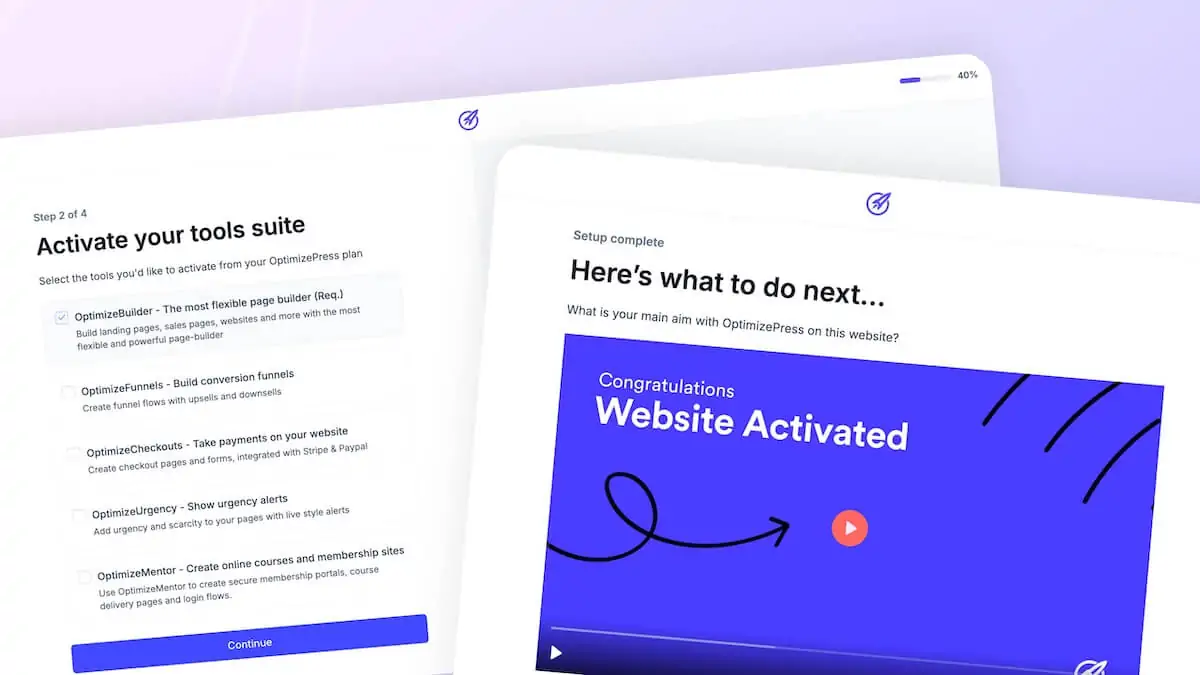
We've also completely redesigned the process of activating a new OptimizePress site with our new Site Activation Wizard.
Instead of manually navigating between your OptimizePress dashboard and WordPress plugins screen to activate your license and install the tools you need, the wizard guides you through everything in one streamlined flow.
The result?
Site activation now takes half the time and is done on a single screen. No more jumping between tabs, no more wondering if you've completed all the necessary steps.
The wizard launches automatically when you license a new site, guiding you through each step and ensuring your OptimizePress plugins are activated and ready to build.
These Features Are Live Now
Both features are live and ready to use. If you're already part of the OptimizePress community, simply update to the latest version from your WordPress dashboard to start using the Page Navigator and the new Site Activation Wizard.
If you're not using OptimizePress yet and want to see how these features (along with everything else we've built) can help you create high-converting pages and funnels, learn more about OptimizePress here.
Important Updates Note:
If you do not see the latest updates available inside your OptimizePress, you may need to clear all license caches on your site.
To do this, go to OptimizePress > Settings > Advanced and then click the "Clear all caches" button. This will ensure you receive the latest updates (as long as you have an active OptimizePress license).
Ready to get better results from your landing pages & blogs in WordPress?
Discover conversion optimized landing pages, funnels and blog themes that make editing easy and get you better results.
14 day money back guarantee

The all-in-one platform for marketers using WordPress. 100% of this page was built with OptimizePress.


Copyright © 2010-2026 OptimizePress® · All Rights Reserved. Privacy Policy · Legal Information